WooCommerce emails play a critical role in an online store. Customers rely on order confirmations, payment updates, shipping notifications, password resets, and other transactional messages to know what is happening with their purchases.
So, when WooCommerce emails are not sending, the problem can quickly become more than a technical inconvenience. Customers may think their order failed, store owners may miss new-order notifications, and important transactional messages can disappear without an obvious error.
The good news is that WooCommerce email problems are usually diagnosable. WooCommerce itself notes that its emails commonly rely on WordPress’s wp_mail() function, meaning the issue can originate from WooCommerce settings, WordPress, your hosting environment, an SMTP configuration, or email deliverability. (WooCommerce)
Here are 15 proven ways to identify and fix the problem.
1. Check Whether the WooCommerce Email Is Enabled
Start with the simplest possibility.
Go to WordPress Dashboard → WooCommerce → Settings → Emails and review the notification you expect to receive.
Open the relevant email and make sure Enable this email notification is selected.
WooCommerce provides separate settings for different notifications, such as new orders, cancelled orders, failed orders, processing orders, and customer-related messages. (WooCommerce)
If an email notification is disabled, WooCommerce will not send it regardless of your SMTP configuration.
2. Check the Order Status
A surprisingly common reason for missing emails is that the order has not reached the status that triggers the notification.
For example, an order sitting in Pending payment may not trigger the same emails as an order that successfully moves to Processing.
Check WooCommerce → Orders and inspect the status of a recent order.
If payment failed, the customer abandoned the payment page, or a payment gateway encountered an issue, the expected email may never have been triggered. WooCommerce specifically recommends checking order status when investigating missing notifications. (WooCommerce)
3. Verify the Recipient Email Address
For admin notifications such as new-order emails, check the configured recipient.
Go to:
WooCommerce → Settings → Emails → New order
Confirm that the recipient address is correct and contains no spelling mistakes.
If you have multiple recipients, check the formatting as well. A small configuration error can prevent the intended recipient from receiving the notification.
4. Check Your WooCommerce From Address
Your sender address matters for both reliability and deliverability.
WooCommerce recommends using an email address associated with your website’s domain rather than a public address such as Gmail or Yahoo. (WooCommerce)
For example, instead of:
yourstore@gmail.com
use something like:
orders@yourstore.com
This creates a more consistent sender identity and can help avoid authentication and spam-filtering problems.
5. Stop Relying on Basic WordPress Mail
By default, WooCommerce uses WordPress’s wp_mail() function to send email. Your hosting environment ultimately determines how that mail is handled. (WooCommerce)
This is one reason an online store can appear perfectly functional while its emails silently fail.
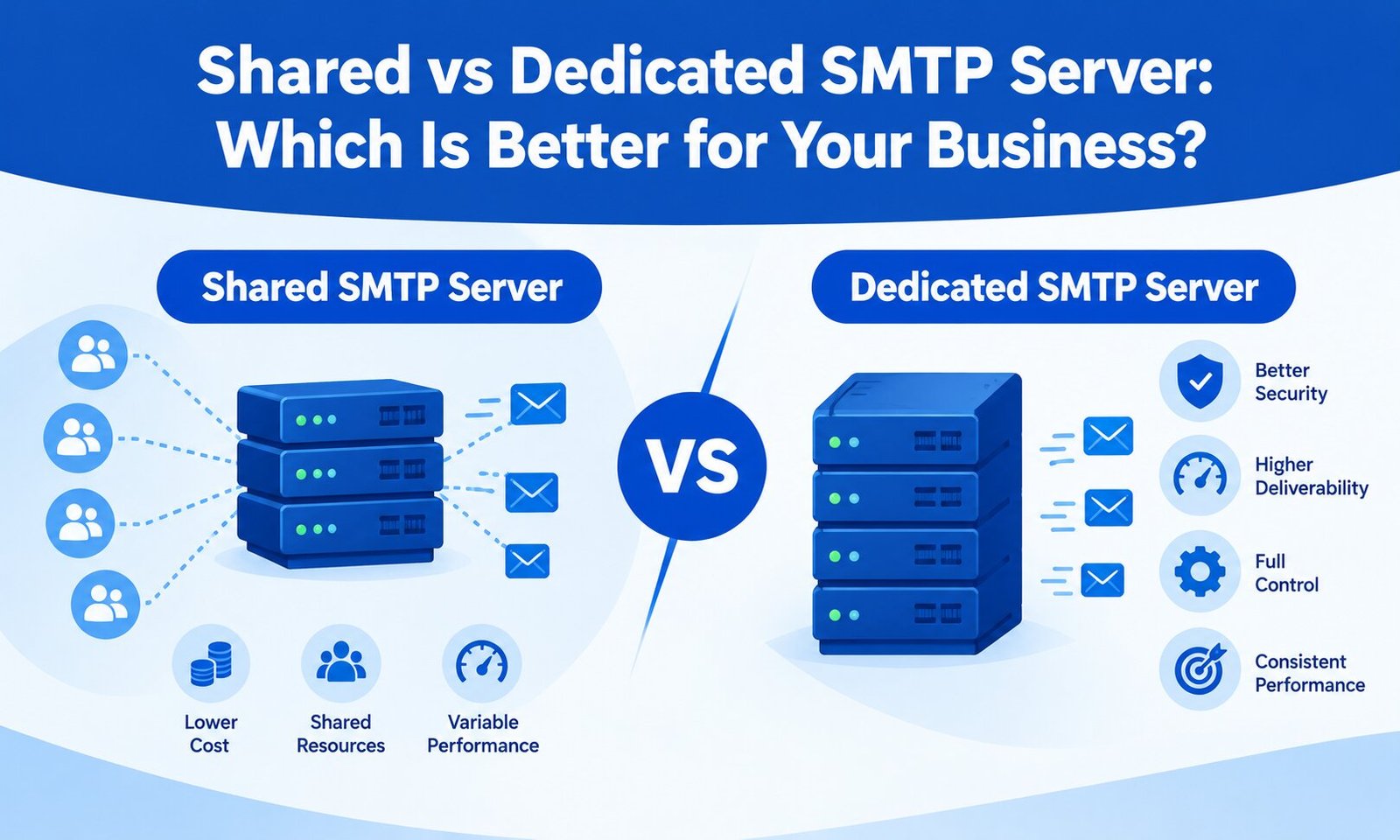
A dedicated SMTP service provides a more reliable method for sending transactional messages and gives you better visibility into delivery failures.
If you are unfamiliar with SMTP configuration, our guide to the best SMTP plugins for WordPress can help you choose an appropriate setup.
6. Configure an SMTP Service
Installing an SMTP plugin alone is not enough. You also need to connect it to a properly configured mail provider.
Depending on your requirements, you might use a transactional email service such as Amazon SES, SendGrid, Mailgun, Postmark, or another reputable provider.
After connecting the service, send a test email and confirm that it reaches the destination inbox.
For an ecommerce website, SMTP is generally preferable to relying entirely on your web host’s default mail function.
7. Check Your SMTP Credentials
If you already use SMTP but WooCommerce emails still fail, verify your credentials.
Check:
- SMTP username
- SMTP password or API key
- SMTP hostname
- Port
- Encryption method
- Authentication settings
- From email address
One incorrect value can cause every transactional email to fail.
Avoid guessing SMTP ports or encryption settings. Your provider’s recommended configuration should be followed exactly.
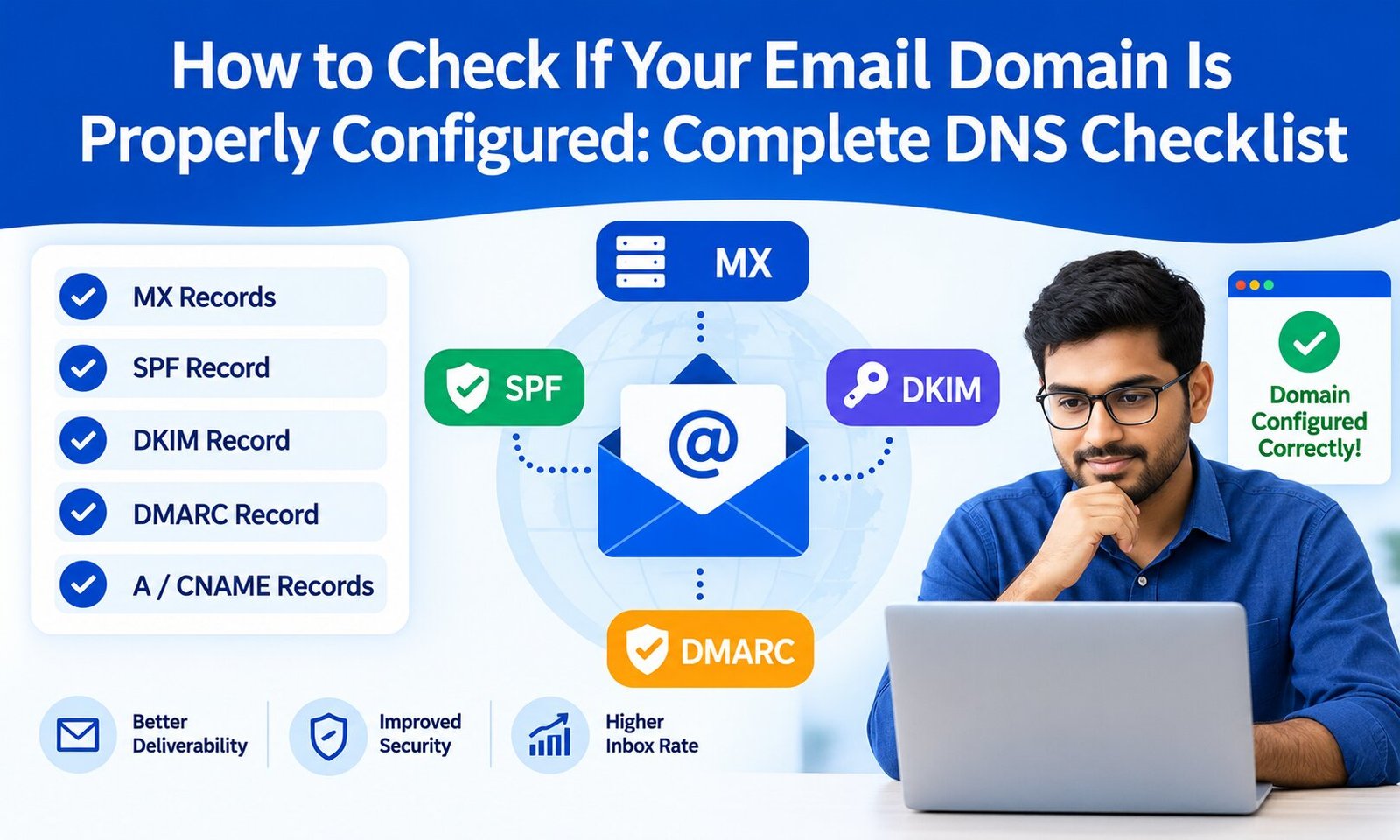
8. Verify SPF, DKIM, and DMARC
Email authentication is increasingly important for reliable delivery.
Your sending domain should have appropriate SPF, DKIM, and DMARC configuration.
These mechanisms help receiving mail servers determine whether messages are authorized and whether the sender’s identity can be trusted.
If you are seeing authentication-related failures, review your domain records carefully. For example, you can learn more about SPF, DKIM, and DMARC differences before changing your DNS records.
Do not add random SPF or DKIM records copied from unrelated providers. Use the exact DNS values supplied by your email service.
9. Check the Spam or Junk Folder
Sometimes WooCommerce is sending the email successfully, but the recipient never sees it in the inbox.
Check:
- Spam
- Junk
- Promotions
- Updates
- Quarantine folders
Test delivery to more than one email provider if possible. If Gmail receives the message but another provider does not, the problem may be related to the receiving provider’s filtering rather than WooCommerce itself.
10. Review WooCommerce Email Logs
Logging can tell you whether WooCommerce actually attempted to send an email.
Current WooCommerce documentation provides a transactional-emails log source under WooCommerce → Status → Logs. Depending on the result, an email may appear as sent, failed, disabled, or skipped. (WooCommerce)
This distinction is extremely useful.
If the log says failed, investigate the mail-sending configuration.
If it says disabled, check the email notification settings.
If it says skipped, look for a missing condition such as a recipient or an order state.
If WooCommerce reports the message as sent but it never arrives, focus on deliverability and your mail provider.
11. Check Your Hosting Provider
Some hosting environments restrict or poorly support outgoing email.
Ask your hosting provider whether outbound email is restricted and whether there are limitations on SMTP connections.
This is particularly important on shared hosting environments.
If the host’s mail server is unreliable or restricted, moving transactional email delivery to a dedicated SMTP provider can solve the problem without moving your entire website.
12. Test for Plugin Conflicts
WooCommerce stores often contain numerous plugins for payments, shipping, checkout customization, marketing automation, security, and order management.
A plugin conflict can interfere with email generation or WordPress’s mail process.
Temporarily test the site with non-essential plugins disabled and a standard theme active. WooCommerce recommends conflict testing as part of troubleshooting email problems. (WooCommerce)
If emails begin working, reactivate plugins one at a time until you identify the conflicting component.
13. Test Your Theme and Custom Code
Your theme or custom WooCommerce code can also modify email templates, recipients, order statuses, or email hooks.
If the problem started immediately after a theme update, customization, or development change, investigate those changes first.
Developers should also review PHP errors and WordPress debug logs for clues.
Avoid editing WooCommerce core files because future updates can overwrite those modifications.
14. Check for SMTP or Server Errors
Specific errors can provide a direct path to the solution.
For example, an SMTP 550 error can indicate rejection by the receiving or sending server due to authentication, policy, recipient, or configuration problems.
If you encounter a 550 response, don’t simply retry the email repeatedly. Identify the exact SMTP response code and message first.
Your email provider’s logs are often the best place to determine why the server rejected the message.
15. Send a Real Test Order
After making changes, don’t assume the problem is fixed just because an SMTP test succeeds.
Place a real or controlled test order and check the complete workflow:
- Customer completes checkout.
- Payment is processed.
- Order status changes.
- WooCommerce generates the appropriate notification.
- SMTP accepts the message.
- The recipient receives it.
- The message lands in the expected folder.
This final end-to-end test confirms that the entire ecommerce email process works rather than just the SMTP connection.
Why WooCommerce Email Reliability Matters
Transactional emails are part of the customer experience. An order confirmation reassures customers that their purchase was successful, while shipping and status notifications reduce uncertainty and support requests.
Email reliability also depends on more than WooCommerce itself. Your WordPress configuration, hosting environment, SMTP provider, DNS authentication, sender reputation, and recipient filtering can all affect delivery.
Google’s guidance on E-E-A-T emphasizes experience, expertise, authoritativeness, and trustworthiness, with trust being particularly important. E-E-A-T is not itself a specific ranking factor, but Google recommends creating helpful, reliable, people-first content that demonstrates these qualities. (Google for Developers)
Final Thoughts
If WooCommerce emails are not sending, don’t immediately reinstall WooCommerce or replace your entire website. Start by checking whether the notification is enabled and whether the order status should actually trigger an email. Then move through recipients, sender settings, SMTP, authentication, logs, hosting, and plugin conflicts.
In most cases, a systematic approach will reveal where the email process is breaking.
The most important goal is not simply to make one test email arrive. You want a dependable transactional email system that continues working when customers place orders, payments are completed, and order statuses change.
That combination of correct WooCommerce settings, authenticated sending, reliable SMTP infrastructure, and ongoing monitoring gives an ecommerce store a much stronger foundation for consistent email delivery.