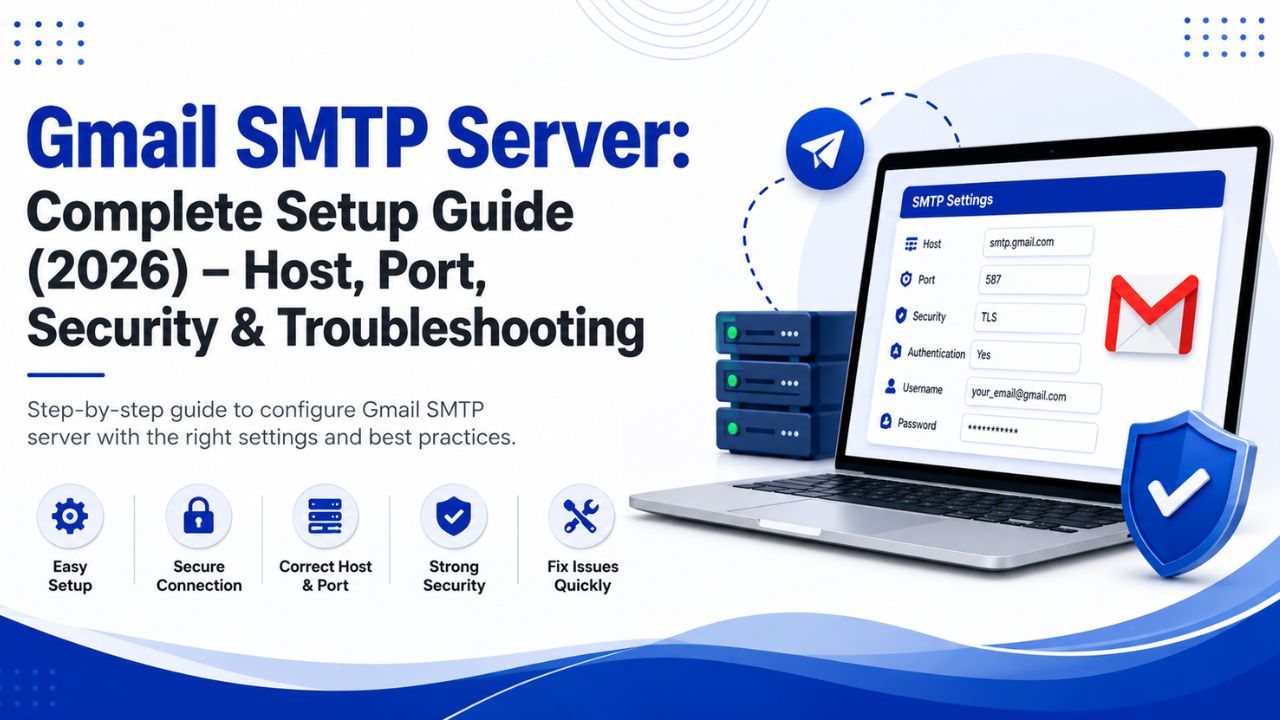
Email remains one of the most reliable communication channels for businesses, developers, and website owners. Whether you’re sending password reset emails, contact form notifications, order confirmations, or newsletters, a properly configured SMTP server helps ensure your emails reach recipients securely and consistently.
If you’re using a Gmail account, Google’s SMTP server offers a simple and trusted way to send emails from applications, websites, and desktop email clients. This guide explains Gmail SMTP server settings, ports, authentication, security, common errors, and troubleshooting tips for 2026.
What Is Gmail SMTP Server?
SMTP (Simple Mail Transfer Protocol) is the standard protocol used to send outgoing emails over the internet. Gmail SMTP Server allows you to send emails through Google’s mail infrastructure using your Gmail or Google Workspace account.
Instead of relying on your web hosting provider’s mail server, Gmail SMTP provides:
- Secure email transmission
- Better email reliability
- Encrypted connections
- Authentication to prevent unauthorized access
- Integration with websites, apps, and email clients
It is commonly used with WordPress websites, CRM software, custom applications, contact forms, and desktop email clients like Outlook and Thunderbird.
Gmail SMTP Server Settings (2026)
Use the following settings when configuring Gmail SMTP.
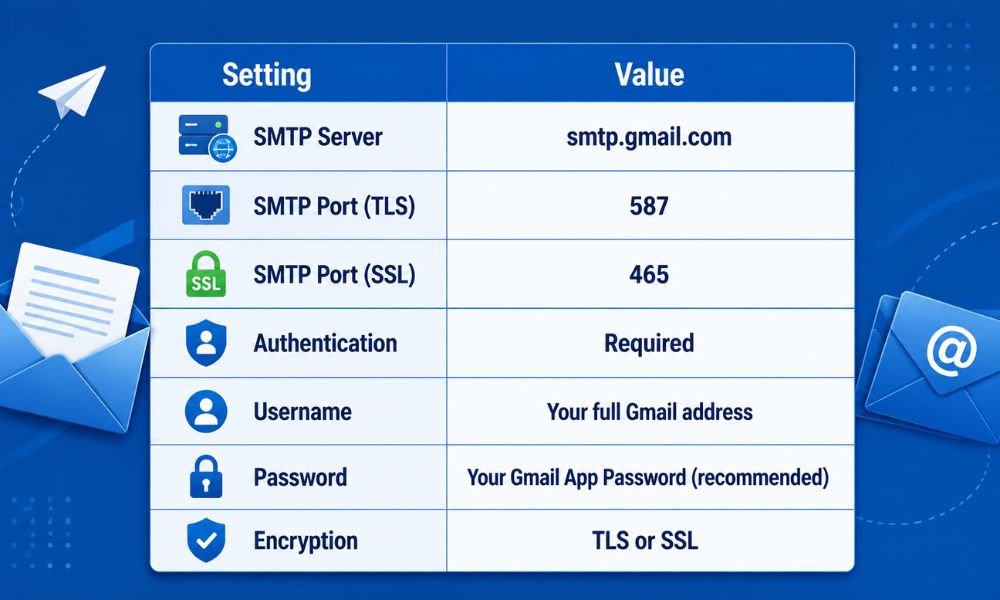
Google recommends using TLS on port 587 whenever possible because it provides strong security while maintaining compatibility with most applications.
Gmail SMTP Authentication
Google no longer supports signing in to SMTP with your regular Gmail password in many scenarios.
Instead, you should use:
- Two-Step Verification
- Gmail App Password
After enabling Two-Step Verification on your Google account, generate a 16-character App Password and use it as the SMTP password in your application.
This approach improves security because your primary Google account password is never shared with third-party applications.
How to Configure Gmail SMTP
Follow these steps to configure Gmail SMTP successfully.
Step 1: Enable Two-Step Verification
Visit your Google Account security settings and enable Two-Step Verification if it isn’t already active.
Step 2: Generate an App Password
Create an App Password specifically for your website, application, or email client.
Step 3: Enter SMTP Settings
Configure your software using:
- SMTP Host: smtp.gmail.com
- Port: 587 (TLS) or 465 (SSL)
- Authentication: Enabled
- Username: Your Gmail email address
- Password: Generated App Password
Step 4: Send a Test Email
Always test your SMTP configuration after saving the settings. A successful test confirms that authentication, encryption, and connectivity are working correctly.
Gmail SMTP Port 587 vs 465
Many users wonder which SMTP port they should use.
Port 587 (TLS)
- Google’s recommended option
- Supports STARTTLS encryption
- Widely supported
- Best for modern applications
Port 465 (SSL)
- Uses SSL encryption immediately after connection
- Suitable for older applications requiring SSL
- Still supported by Gmail
For most users, port 587 with TLS is the preferred choice.
Common Gmail SMTP Errors and Solutions
1. Authentication Failed
Possible causes
- Incorrect username
- Wrong App Password
- Two-Step Verification disabled
Solution
Generate a new App Password and verify your Gmail address is entered correctly.
2. Username and Password Not Accepted
This usually occurs when using your regular Gmail password instead of an App Password.
Solution
Enable Two-Step Verification and create an App Password.
3. SMTP Connection Timeout
Common reasons include:
- Firewall blocking SMTP
- Incorrect port
- Network restrictions
Check that your firewall allows outbound connections on ports 587 or 465.
4. Emails Not Sending
Possible causes include:
- Incorrect SMTP host
- Authentication disabled
- Server configuration issues
Verify every SMTP setting carefully before troubleshooting further.
Gmail SMTP Security Best Practices
Email security should never be overlooked. Consider these best practices when using Gmail SMTP.
- Always enable Two-Step Verification.
- Use App Passwords instead of your main Google password.
- Choose TLS encryption whenever possible.
- Never share SMTP credentials publicly.
- Update your application’s email libraries regularly.
- Monitor your account for suspicious login activity.
- Remove unused App Passwords periodically.
These practices help reduce the risk of unauthorized access while maintaining secure email communication.
Gmail SMTP Sending Limits
Although Gmail SMTP is reliable, Google enforces daily sending limits to protect its infrastructure from abuse.
The exact limits depend on whether you’re using a personal Gmail account or a Google Workspace account. Exceeding these limits may temporarily prevent additional outgoing emails until your quota resets.
If your business sends a high volume of transactional or marketing emails, a dedicated email delivery service may be more appropriate.
Gmail SMTP for Websites
Many website owners configure Gmail SMTP for:
- Contact forms
- Password reset emails
- WooCommerce order notifications
- Membership websites
- Appointment booking systems
- Customer support portals
Using authenticated SMTP often improves email delivery compared to the default PHP mail function provided by many hosting companies.
Gmail SMTP for Developers
Developers frequently integrate Gmail SMTP into applications built with:
- PHP
- Laravel
- Python
- Node.js
- Java
- ASP.NET
Most modern frameworks support SMTP configuration through environment variables, making deployment straightforward while keeping credentials secure.
Troubleshooting Checklist
If Gmail SMTP isn’t working, review this checklist:
- Confirm the SMTP server is smtp.gmail.com.
- Verify the correct port (587 or 465).
- Ensure authentication is enabled.
- Use your full Gmail email address as the username.
- Replace your regular password with a valid App Password.
- Check firewall and antivirus settings.
- Test your internet connection.
- Review application logs for detailed error messages.
Systematically checking these items resolves the majority of Gmail SMTP issues.
Frequently Asked Questions
Is Gmail SMTP free?
Yes. Gmail SMTP is available with personal Gmail accounts, though sending limits apply. Google Workspace users receive higher limits and additional business features.
Which Gmail SMTP port should I use?
Port 587 with TLS is recommended for most applications. Port 465 with SSL remains available for compatibility with older systems.
Do I need an App Password?
In most cases, yes. If Two-Step Verification is enabled, Google expects applications to authenticate using an App Password rather than your regular account password.
Is Gmail SMTP secure?
Yes. Gmail SMTP supports SSL and TLS encryption, helping protect email data during transmission when configured correctly.
Final Thoughts
Gmail SMTP remains one of the most trusted solutions for sending secure emails from websites, applications, and desktop email clients. By using the correct SMTP server settings, enabling Two-Step Verification, and authenticating with an App Password, you can significantly improve email reliability while protecting your Google account.
If you’re managing a business website or custom application, proper SMTP configuration is an essential part of maintaining dependable communication with customers. At Getsvision Solutions, we regularly share practical guides on website management, email configuration, and digital technology to help businesses implement reliable, secure, and scalable solutions. Staying informed about Google’s latest SMTP recommendations will help ensure your email system continues to perform effectively as security standards evolve.