Business emails that fail to send, land in spam, or trigger authentication warnings can disrupt communication and damage customer trust. In many cases, the problem is related to incorrect DNS records, missing email authentication, or a mismatch between your domain and email service provider.
Whether you use Google Workspace, Microsoft 365, a business email hosting service, or an SMTP provider, checking your domain configuration is an important step toward reliable email delivery.
This guide explains how to check your email domain configuration, which DNS records to review, and how to troubleshoot common problems.
Why Is Proper Email Domain Configuration Important?
Your domain’s DNS records help receiving mail servers identify where your email should be delivered and whether your messages are authorized to come from your domain.
Incorrect settings can cause outgoing emails to fail authentication, increase spam-folder placement, or prevent incoming messages from reaching your mailbox.
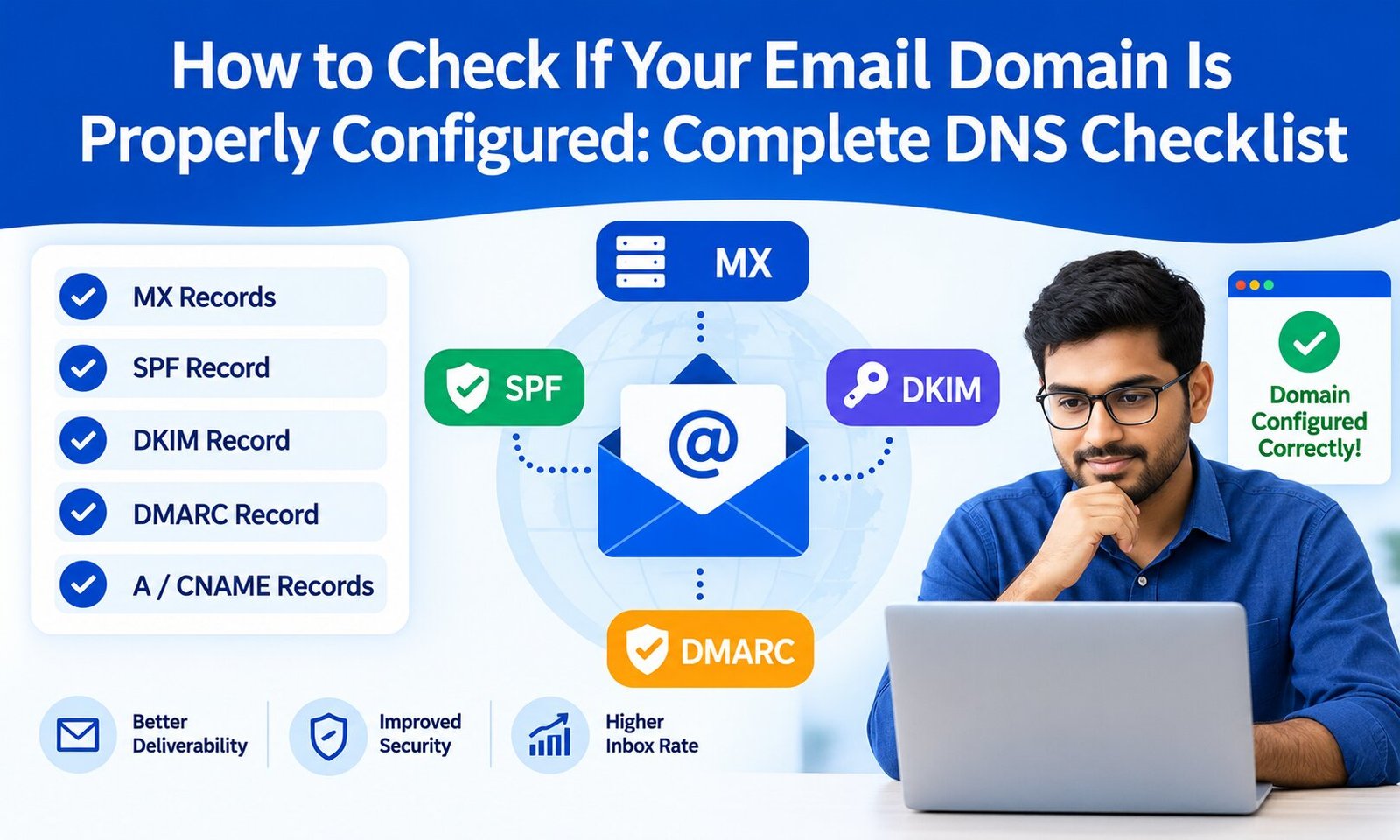
A properly configured domain typically includes the correct MX records for receiving email, SPF and DKIM records for authentication, and a DMARC policy that tells receiving servers how to handle messages that fail authentication.
However, publishing these records alone does not guarantee inbox placement. Sender reputation, recipient engagement, sending practices, and message quality also matter.
Complete DNS Checklist for Email Configuration
Use the following checklist to review your domain’s email setup.
1. Check Your MX Records
Mail Exchange (MX) records tell other mail servers where to deliver emails sent to your domain.
How to check:
- Open a DNS lookup tool or your computer’s terminal.
- Look up the MX records for your domain.
- Compare the returned values with the instructions from your email hosting provider.
- Confirm that the records point to the correct mail servers and have the required priorities.
For example, Google Workspace and Microsoft 365 use different MX configurations. Always follow the current instructions provided by your email host instead of copying records from another domain.
If MX records are missing or incorrect, incoming emails may bounce or fail to reach your inbox.
2. Verify Your SPF Record
Sender Policy Framework (SPF) identifies the mail servers authorized to send emails using your domain.
An SPF record is published as a TXT record in DNS. It should include the sending services that are legitimately authorized to send mail for your domain.
What to check:
- An SPF record exists at the correct DNS name.
- It includes all legitimate sending services.
- It does not authorize services you no longer use.
- There is only one SPF record for the same domain name.
- The record stays within SPF’s limit of 10 DNS-query-causing lookups.
Multiple SPF records can cause a permanent authentication error. Combining them incorrectly can also break legitimate email sending.
Do not copy a generic SPF record without checking your provider’s requirements. If you use multiple platforms, such as a business mailbox and a marketing email service, make sure the configuration accounts for both.
3. Confirm Your DKIM Record
DomainKeys Identified Mail (DKIM) adds a digital signature to outgoing messages. Receiving servers can use the corresponding public key in DNS to verify that the signature is valid.
Your email provider generally supplies the DKIM selector and the DNS record you need to publish.
Verification checklist:
- DKIM signing is enabled with your email provider.
- The correct selector is used.
- The public key is published at the expected DNS name.
- The record matches the provider’s instructions.
- Test messages pass DKIM authentication.
A missing selector, incorrect hostname, or incomplete public key can cause DKIM verification to fail.
If your messages show a DKIM error, follow a dedicated DKIM authentication troubleshooting guide to identify the underlying issue.
4. Review Your DMARC Record
Domain-based Message Authentication, Reporting, and Conformance (DMARC) builds on SPF and DKIM. It tells receiving servers what policy to apply when messages fail DMARC authentication and can provide reports about authentication activity.
A DMARC record is published as a TXT record at _dmarc.yourdomain.com.
Common policy values include:
p=none— monitor authentication results without requesting quarantine or rejection.p=quarantine— request that failing messages be treated as suspicious.p=reject— request rejection of messages that fail the DMARC policy.
Start with a monitoring approach when appropriate, review reports, and move toward stronger enforcement only after verifying legitimate sending sources and alignment.
DMARC requires SPF or DKIM authentication to pass with the appropriate alignment to the domain in the visible From address. A record that exists but contains syntax errors or an unsuitable policy may not deliver the protection you expect.
5. Check DNS Propagation
After changing DNS records, the updated information may not appear immediately everywhere. DNS caching and record TTL values affect how quickly changes become visible.
To verify propagation:
- Query the relevant MX or TXT record using a DNS lookup tool.
- Check the authoritative nameservers for your domain.
- Compare results from more than one public DNS resolver.
- Confirm that the values match your email provider’s instructions.
- Allow time for cached records to expire.
If your domain uses a third-party DNS provider, make changes in the active DNS hosting panel rather than an unrelated registrar interface.
6. Confirm Your Email Sending Configuration
Correct DNS records are only part of a functioning email system. Your email client, application, or website must also use the right outgoing mail server settings.
Check the following:
- SMTP hostname
- SMTP port
- TLS or SSL encryption requirements
- Authentication credentials
- Sender address and domain
- Provider sending limits
Use the SMTP settings supplied by your email provider. For many client-submission configurations, port 587 with STARTTLS or port 465 with implicit TLS is common, but you should follow your provider’s specific requirements.
If your website or application sends emails, confirm that it is connected to a working SMTP service rather than relying on an incorrectly configured default mail function.
7. Test Your Domain’s Authentication Results
After checking the records, send a test email to a mailbox where you can inspect the message headers.
Look for the Authentication-Results header and check whether SPF, DKIM, and DMARC pass.
A successful test should generally show:
- SPF: PASS — the sending server is authorized for the relevant envelope domain.
- DKIM: PASS — the message’s DKIM signature validates.
- DMARC: PASS — at least one aligned authentication mechanism passes.
Remember that SPF can pass for one domain while DMARC fails because the authenticated domain does not align with the visible From domain. Checking all three results helps identify the actual issue.
Common Email DNS Problems and Their Solutions
Emails are going to spam: Check SPF, DKIM, and DMARC, then review sender reputation, complaint rates, and list quality.
Incoming emails are missing: Verify MX records, domain nameservers, and any recent DNS changes.
SPF authentication fails: Check for multiple SPF records, missing sending services, syntax errors, or excessive DNS lookups.
DKIM authentication fails: Verify the selector, public key, DNS hostname, and whether your provider is signing outgoing messages.
DMARC fails despite SPF or DKIM passing: Check whether the authenticated domain aligns with the domain shown in the From address.
Website emails are not being delivered: Verify SMTP credentials, encryption settings, server logs, and the domain authentication used by the sending service.
Final Email Domain Configuration Checklist
Before considering your setup complete, confirm that:
- MX records point to the correct receiving servers.
- SPF authorizes all legitimate sending services.
- DKIM signing works and the published key is correct.
- DMARC is valid and its policy matches your monitoring and enforcement plan.
- DNS changes are visible through the authoritative nameservers.
- SMTP settings match your provider’s requirements.
- Test messages pass the expected authentication checks.
- Bounce rates, complaints, and sender reputation are monitored regularly.
For a broader understanding of the authentication standards and how they work together, read our guide to SPF, DKIM, and DMARC differences.
Conclusion
Checking your email domain configuration is an essential troubleshooting step for businesses that depend on reliable email communication. Reviewing MX, SPF, DKIM, and DMARC records helps identify common DNS and authentication problems before they disrupt business operations.
Use this checklist whenever you configure a new domain, switch email providers, add a sending platform, or investigate delivery failures. By combining accurate DNS settings with correct SMTP configuration and ongoing monitoring, you can build a more reliable email system and reduce avoidable delivery issues.