If your WordPress website has suddenly stopped sending emails, you are not alone. Missing contact-form messages, password-reset emails, WooCommerce order notifications, and admin alerts can quickly turn into lost leads and frustrated customers.
The good news is that WordPress email problems are usually fixable. In many cases, WordPress itself is not the real problem. By default, WordPress relies on the server’s PHP mail function, and many hosting environments restrict or poorly configure this method because of spam and deliverability concerns.
This guide explains 15 proven ways to troubleshoot and fix WordPress email delivery problems, from checking basic settings to configuring SMTP and improving domain authentication.
1. Check Whether WordPress Is Actually Sending Emails
First, identify what is failing.
Does WordPress fail to send every type of email, or only emails from a specific plugin? Test several functions, such as:
- Contact form submissions
- Password-reset emails
- New-user notifications
- WooCommerce order emails
- Comment notifications
- Website admin alerts
If only one plugin is affected, the problem may be its configuration rather than WordPress itself.
If every type of email fails, focus on your hosting environment, mail configuration, or SMTP setup.
2. Check the Recipient Email Address
A surprisingly common problem is an incorrect recipient address.
Review the email address configured in your contact-form, membership, ecommerce, or notification plugin. Look for spelling mistakes, outdated addresses, missing domains, or accidental spaces.
Also check whether the notification is being sent to an address that is no longer active.
3. Check Your WordPress Email Settings
WordPress does not have a traditional built-in SMTP configuration screen. However, plugins and third-party services can control how emails are delivered.
Check your website’s general settings and the email settings of individual plugins.
For WooCommerce, for example, review WooCommerce → Settings → Emails and verify that notifications are enabled and assigned to the correct recipient addresses.
4. Stop Relying on PHP Mail
One of the most effective solutions is to replace WordPress’s default PHP mail method with SMTP.
SMTP authenticates your website with a mail server before sending messages. This generally provides better reliability, authentication, logging, and deliverability than relying on basic server mail functions.
If you want to compare available options, see this guide to the best SMTP plugins for WordPress.
5. Install and Configure an SMTP Plugin
An SMTP plugin can connect WordPress to a professional mail provider or your own SMTP server.
Popular options support services such as Gmail, Microsoft-based mail services, transactional email platforms, and custom SMTP servers.
After installation, configure:
- SMTP host
- SMTP port
- Encryption method
- Authentication
- Username
- Password or application password
- From email address
- From name
Do not simply install an SMTP plugin and assume the problem is solved. Incorrect credentials or server settings can prevent delivery.
6. Use the Correct SMTP Port
The SMTP port matters.
Port 587 is commonly used for authenticated email submission with STARTTLS. Port 465 is commonly associated with SMTP over SSL/TLS. Port 25 is traditionally used for SMTP server-to-server communication but is frequently restricted by hosting providers and ISPs.
The correct choice depends on your email provider, so always follow its current SMTP documentation.
You can also learn more about SMTP ports and when to use 25, 465, or 587.
7. Verify Your SMTP Credentials
Incorrect credentials are another frequent cause of failed WordPress emails.
Double-check your SMTP username and password. Some providers require an app password rather than your normal account password, particularly when multi-factor authentication is enabled.
Also verify whether your provider requires a specific username format, such as the complete email address.
8. Check Your “From” Address
Your WordPress website should generally send emails from an address associated with your domain.
For example, if your website is example.com, using an address such as wordpress@example.com or hello@example.com can create a more consistent sending identity.
Avoid using a visitor’s email address as the From address in a contact form. Instead, use your own authenticated domain address as the sender and place the visitor’s address in the Reply-To field.
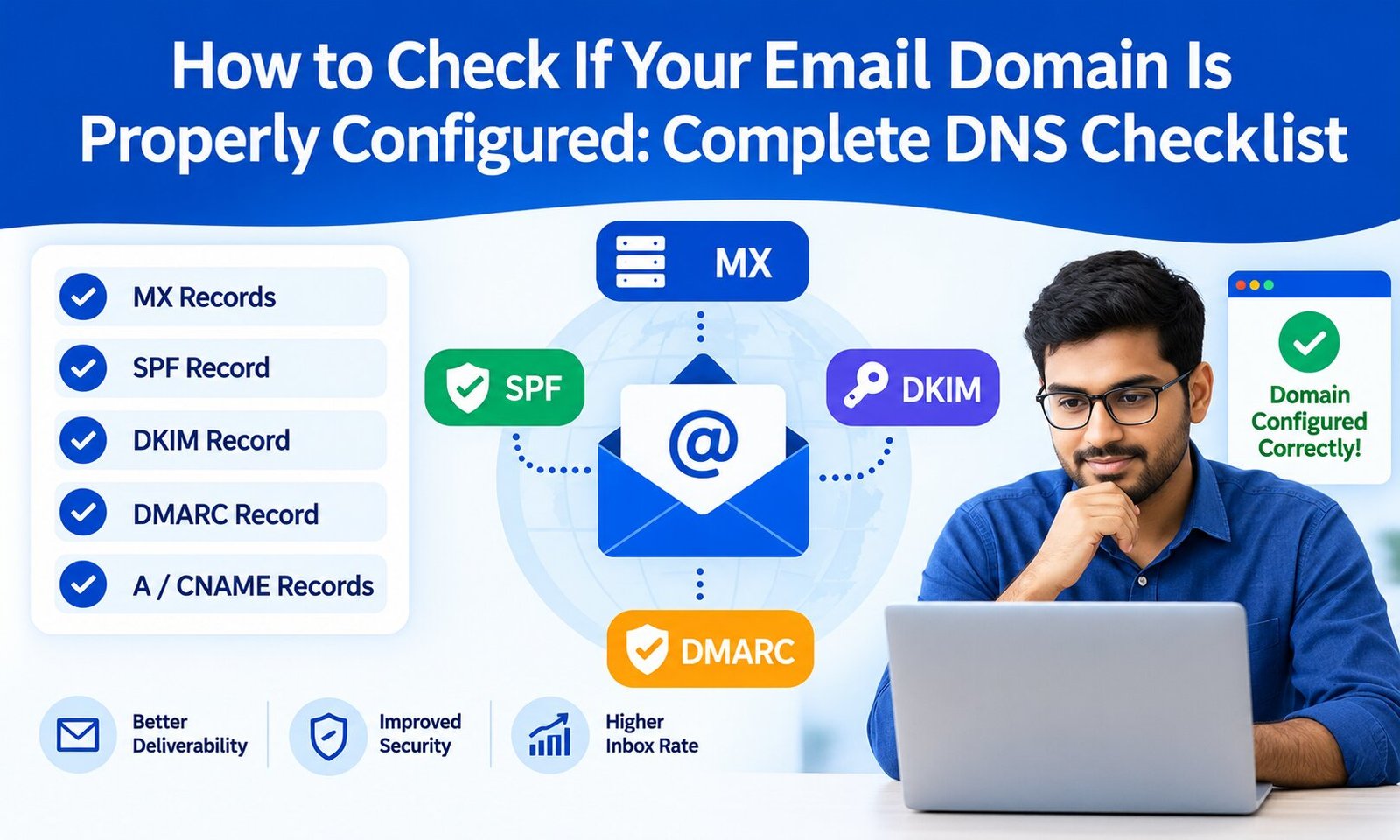
9. Configure SPF, DKIM, and DMARC
Email authentication is essential for modern deliverability.
SPF identifies which servers are authorized to send email for your domain. DKIM adds a cryptographic signature to outgoing messages. DMARC helps receiving servers determine what to do when messages fail authentication checks.
Together, these technologies help protect your domain from spoofing and can improve trust with receiving mail providers.
If you are unfamiliar with these records, review a practical explanation of SPF vs. DKIM vs. DMARC.
10. Check Your Email’s Spam or Junk Folder
Sometimes WordPress is sending emails successfully, but the recipient’s mail provider is filtering them.
Check spam, junk, promotions, and other filtered folders. If messages consistently land in spam, investigate sender reputation, authentication, email content, links, sending volume, and recipient engagement.
Successful delivery and successful inbox placement are not the same thing.
11. Check Your Hosting Provider
Some shared hosting companies restrict outgoing email to prevent abuse.
Your hosting provider may limit:
- SMTP connections
- Port 25
- PHP mail
- Hourly email volume
- Number of recipients
- Outgoing server connections
Contact your hosting provider and ask whether outgoing SMTP connections are restricted for your hosting account.
For high-volume websites, shared hosting email may not be the right solution.
12. Check for SMTP or Mail Server Errors
Look at your SMTP plugin’s email logs or error messages.
Common errors include:
- Authentication failed
- Connection timed out
- Connection refused
- Invalid hostname
- SSL/TLS errors
- Sender rejected
- Recipient rejected
- SMTP 550 errors
An error code can provide a much faster route to the solution than repeatedly changing settings.
13. Test Your Contact Form Plugin
If WordPress admin emails are working but contact-form messages are not, investigate the form plugin.
Check the form’s:
- Notification settings
- Recipient address
- From address
- Reply-To address
- Spam protection
- Conditional notification rules
- SMTP integration
Also submit a test form yourself. This helps determine whether the problem occurs during form processing or email delivery.
14. Check Plugins and Theme Conflicts
A recently installed or updated plugin can interfere with email functionality.
If the problem appeared after an update, temporarily test with non-essential plugins disabled. You can also switch to a default WordPress theme during troubleshooting.
Never disable security or essential plugins on a live site without understanding the potential impact. Ideally, perform conflict testing on a staging environment.
15. Use a Dedicated Email Delivery Service for Important Websites
If your website depends heavily on emails, consider using a professional transactional SMTP or email delivery service instead of relying on shared hosting.
This can be particularly valuable for ecommerce stores, membership websites, SaaS platforms, lead-generation websites, and businesses processing large numbers of notifications.
A professional setup can provide better authentication, monitoring, bounce handling, delivery logs, and reputation management.
How to Prevent WordPress Email Problems in the Future
Fixing email delivery once is useful, but preventing recurring problems is even better.
Keep your WordPress core, themes, and plugins updated. Use a reliable hosting provider. Configure SMTP authentication correctly and authenticate your sending domain with SPF, DKIM, and DMARC.
Monitor email logs and bounce rates so you can identify problems before they affect customers. If your website sends marketing emails in addition to transactional notifications, keep those sending activities properly separated and follow applicable email marketing and privacy requirements.
Avoid sending large marketing campaigns directly through WordPress unless your infrastructure is designed for that purpose. Transactional website emails and bulk marketing emails have different technical and deliverability requirements.
Final Thoughts
When WordPress is not sending emails, the solution is usually not to keep clicking the “send test email” button and hoping for different results. Start by identifying whether WordPress is generating the message, whether your SMTP connection is working, and whether the receiving provider is accepting the email.
For most business websites, proper SMTP configuration is the best starting point. From there, verify credentials, ports, sender addresses, DNS authentication, hosting restrictions, spam filtering, and mail logs.
A reliable email setup is more than a technical convenience. Contact forms, password resets, order confirmations, account notifications, and lead alerts can directly affect customer experience and revenue. Taking the time to build a properly authenticated and monitored WordPress email system can prevent missed messages and give your website a much more dependable communication channel.